Process Network Connections
The Process Network Connections action identifies and updates network connectivity details for selected Configuration Items (CIs). This includes mapping connections between devices, servers, switches, and other network components to ensure the CMDB accurately reflects the physical and logical network topology.
To run the Process Network Connections job, scanned discovery data must be available in the CMDB. Without this data, network connection details cannot be generated accurately.
For Switch CIs imported from Juniper Mist, running this action creates Connected To relationships based on the available network-connection data. Wired-client details for those switches remain available on the CI's Wired Client tab.
For switch stacks, chassis clusters, and firewall/access point HA pairs, running this action creates the stack/cluster CI (Switch Stacks, Chassis Cluster, Firewall Cluster, or Access Point Cluster) and its relationships: the stack/cluster CI is Abstract Of the scanned master device, and the master Contains its member devices. The scanned master itself stays a standard Switch, Firewall, or Wireless Controller CI, tagged with a Cluster Type, rather than being replaced by the stack/cluster record.
| Stack/cluster CIs created before this update are not automatically converted to the new model when you rescan. Reclassify the existing CI in place (as a Switch, Firewall, or Wireless Controller with the applicable Cluster Type) and run Process Network Connections again, or archive and merge any duplicate CIs it creates. |
-
Open the CMDB module in Virima.
-
Select the CIs for which you want to identify network connections.
-
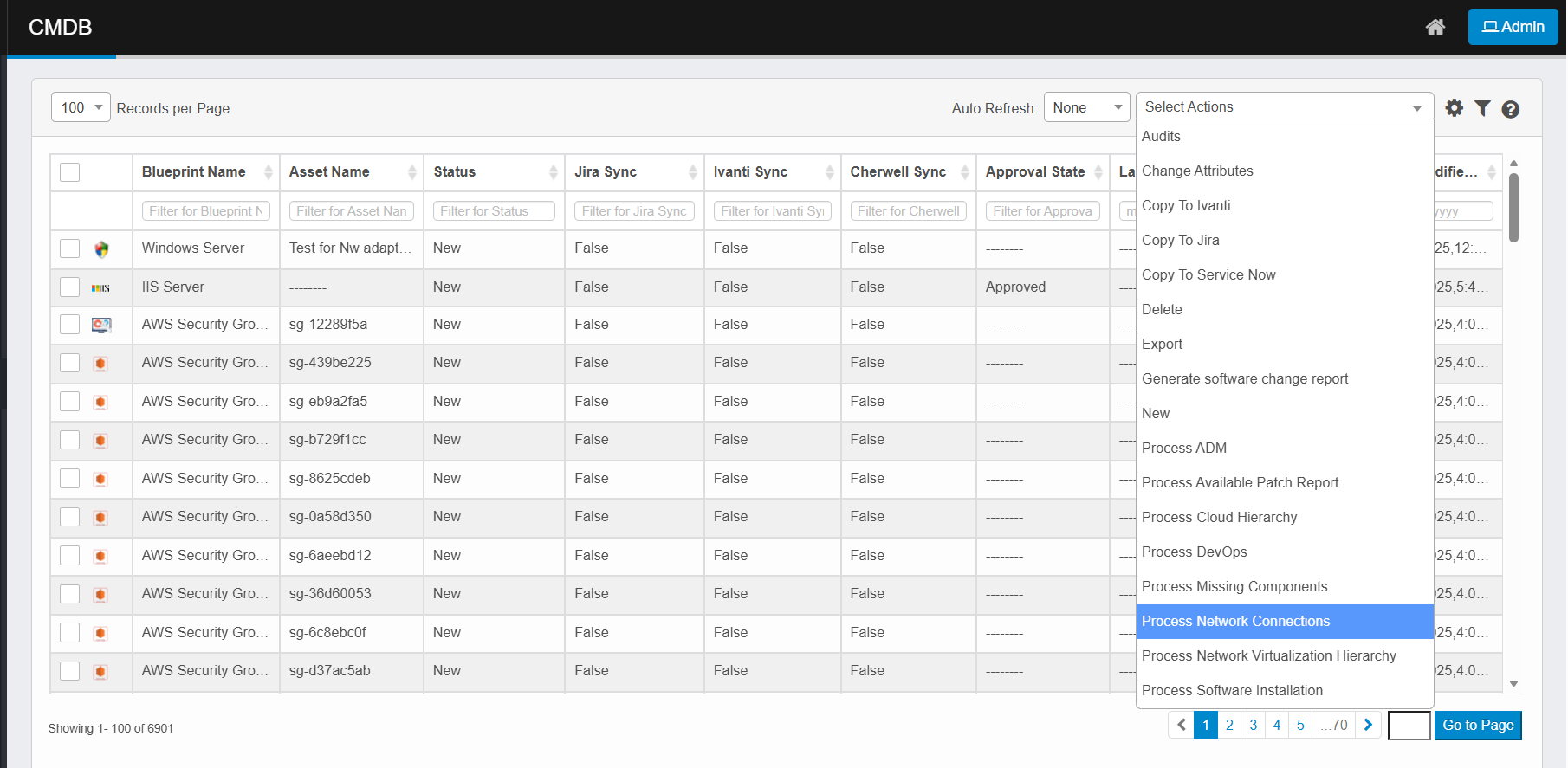
Click the Select Actions dropdown at the top-right of the CMDB list.
-
Choose Process Network Components from the dropdown.
-
The system collects network connection data for the selected CIs.
-
It maps connectivity between devices, including both direct physical links and logical network paths.
-
Updated network connection details are stored in the CMDB.
-
Review them in the network topology or dependency views.
-
Monitor progress and completion via the Sync Logs page if processing runs in the background.